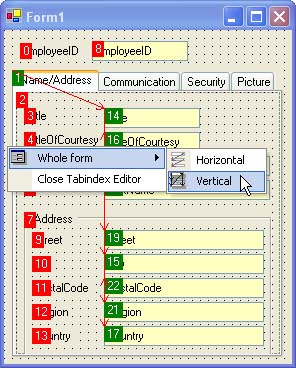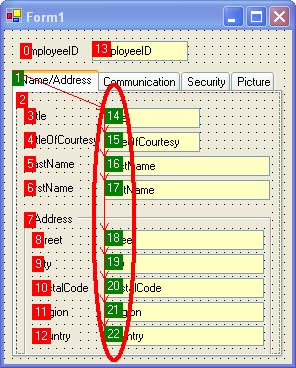
 Note: additional information on the subject contained here can be obtained from an instructional video clip
  at the form.suite4.net web site.
The TabIndex Editor is a swift method of defining the TabIndex of controls on a form, thereby setting the TAB-key sequence for the end user.
Recommended use of the TabIndex Editor is as follows:
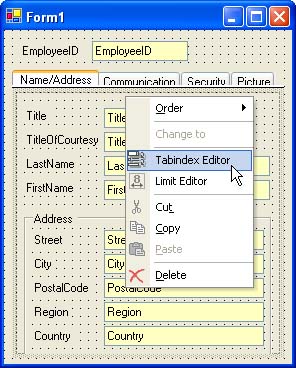
TabIndex property values of all visible controls are displayed by the TabIndex Editor in green and red boxes. The color of the box denotes:
true. The user can reach the control using the TAB key.TabStop is set to false. The user won't be able to reach the control using the TAB key.TabStop by right-clicking the control and selecting or deselecting "TabStop" from the context menu. 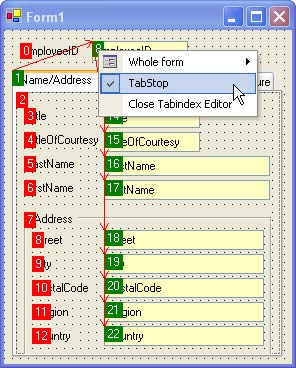
TabIndex values of the two controls will be swapped. TabIndex and/or TabStop values of all controls to their desired value. TabIndex of all controls is adjusted appropriately.