
This section contains settings in regards to generation of source code using form.suite4.net.
It is subdivided in the following areas:

Click event attached to it.
The following code is generated when the checkbox is activated:
using System;
using System.Windows.Forms;
public class Form1 : System.Windows.Forms.Form
{
	private System.Windows.Forms.Button cmdButton1;

	public Form1()
	{
		this.InitializeComponent();
	}

	private void InitializeComponent()
	{
		this.cmdButton1 = new System.Windows.Forms.Button();
		this.SuspendLayout();
		this.cmdButton1.Location = new System.Drawing.Point(8, 8);
		this.cmdButton1.Name = "cmdButton1";
		this.cmdButton1.Size = new System.Drawing.Size(75, 23);
		this.cmdButton1.TabIndex = 0;
		this.cmdButton1.Text = "cmdButton1";
		this.cmdButton1.Click += new System.EventHandler(this.cmdButton1_Click);
		this.AutoScaleBaseSize = new System.Drawing.Size(5, 13);
		this.ClientSize = new System.Drawing.Size(292, 266);
		this.Controls.Add(this.cmdButton1);
		this.Name = "Form1";
		this.Text = "Form1";
		this.ResumeLayout(false);
	}

	private void cmdButton1_Click(object sender, System.EventArgs e) {

	}
}
The event handler is registered in the InitializeComponent method of the form just as it would in Visual Studio .NET. Now compare this to the code output when the checkbox is not checked:
using System;
using System.Windows.Forms;
public class Form1 : System.Windows.Forms.Form
{
	private System.Windows.Forms.Button cmdButton1;

	public Form1()
	{
		this.InitializeComponent();
		this.InitializeEvents();
	}

	private void InitializeComponent()
	{
		this.cmdButton1 = new System.Windows.Forms.Button();
		this.SuspendLayout();
		this.cmdButton1.Location = new System.Drawing.Point(72, 48);
		this.cmdButton1.Name = "cmdButton1";
		this.cmdButton1.Size = new System.Drawing.Size(75, 23);
		this.cmdButton1.TabIndex = 0;
		this.cmdButton1.Text = "cmdButton1";
		this.AutoScaleBaseSize = new System.Drawing.Size(5, 13);
		this.ClientSize = new System.Drawing.Size(292, 266);
		this.Controls.Add(this.cmdButton1);
		this.Name = "Form1";
		this.Text = "Form1";
		this.ResumeLayout(false);
	}

	private void InitializeEvents()
	{
		this.cmdButton1.Click += new System.EventHandler(this.cmdButton1_Click);
	}

	private void cmdButton1_Click(object sender, System.EventArgs e)
	{
	}
}
As you can see, an additional method InitializeEvents is created which registers the event handler for the Click
event of cmdButton1 (and, of course, any event handlers of other controls).
The advantage of this approach over the one shown earlier is that you can edit all event handler registrations in one location rather than having to search for them in InitializeComponent. 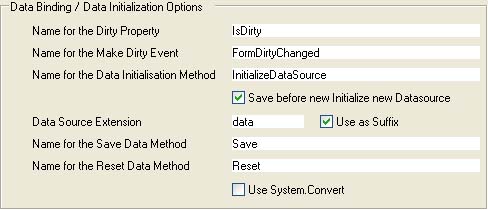
The settings available here apply to binding business classes to forms as described in Working With Business Classes.
public void InitializeDataSource(assetm.Northwind.EmployeesRow employeesRowdata)
{
	this.SuspendLayout();
	this.Save();
	this._IsInitializing = true;
	this.Reset();
	this._EmployeesRowdata = employeesRowdata;
	if((this._EmployeesRowdata != null))
	{
		this.txtTitleOfCourtesy.Text = this._EmployeesRowdata.TitleOfCourtesy;
		this.txtTitle.Text = this._EmployeesRowdata.Title;
		this.txtCountry.Text = this._EmployeesRowdata.Country;
		this.txtRegion.Text = this._EmployeesRowdata.Region;
		this.txtPostalCode.Text = this._EmployeesRowdata.PostalCode;
		this.txtCity.Text = this._EmployeesRowdata.City;
		this.txtStreet.Text = this._EmployeesRowdata.Address;
		this.txtFirstName.Text = this._EmployeesRowdata.FirstName;
		this.txtLastName.Text = this._EmployeesRowdata.LastName;
	}
	this.ResumeLayout(false);
	this._IsInitializing = false;
	this._IsDirty = false;
}
If you want to omit the call to the method that saves any changes to the business object (marked blue in the code snippet above) deactivate the checkbox next to Save before new Initialize new Datasource.TextBox control txtCustomerAge stores the value of the myCustomer.Age business object property which is of type System.Int32. If the Use System.Convert checkbox is not selected, the generated code will be myCustomer.Age = int.Parse(txtCustomerAge.Text ); in C# and myCustomer.Age = Integer.Parse(txtCustomerAge.Text) in Visual Basic .NET. myCustomer.Age = System.Convert.ToInt32(txtCustomerAge.Text); in C# and myCustomer.Age = System.Convert.ToInt32(txtCustomerAge.Text) in VB .NET respectively.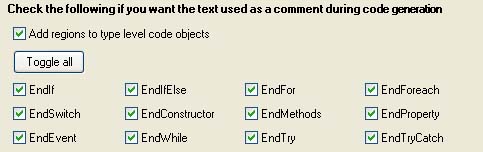
In this section you can further customize the generated code, although the changes you make here will not affect the code's functionality. The settings provided are merely intended to organize the code. If you select any of the checkboxes below the "Toggle all" button, the code output will contain additional comments such as //end try ( C#) or 'End try ( Visual Basic .NET) after a try/catch block is complete. This is a convenience feature mainly targeted at C# programmers to increase code readablility.
Activating the Add regions to type level code objects checkbox will add #region/#endregion (C#) or #Region/#End Region (VB.NET) preprocessor directives to the code output, as illustrated by the following excerpt from the InitializeComponent method of a sample form:
#region txtCountry
this.txtCountry.BackColor = System.Drawing.Color.FromArgb(((System.Byte)(255)), ((System.Byte)(255)), ((System.Byte)(192)));
this.txtCountry.ForeColor = System.Drawing.Color.Black;
this.txtCountry.Location = new System.Drawing.Point(80, 114);
this.txtCountry.Name = "txtCountry";
this.txtCountry.Size = new System.Drawing.Size(160, 20);
this.txtCountry.TabIndex = 22;
this.txtCountry.Text = "Country";
#endregion
The initialization of the TextBox txtCountry is wrapped in a region, as are the initializations of all other controls (not shown here).
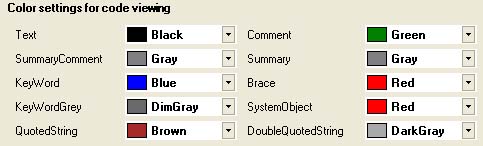
The settings here apply to the code generation preview window (which is available through the Form Designer's main menu) and are self-explanatory. Change the color of various code elements as you see fit or accept the defaults.